















































 Author: Radomskyi Maksym Vasyliovych
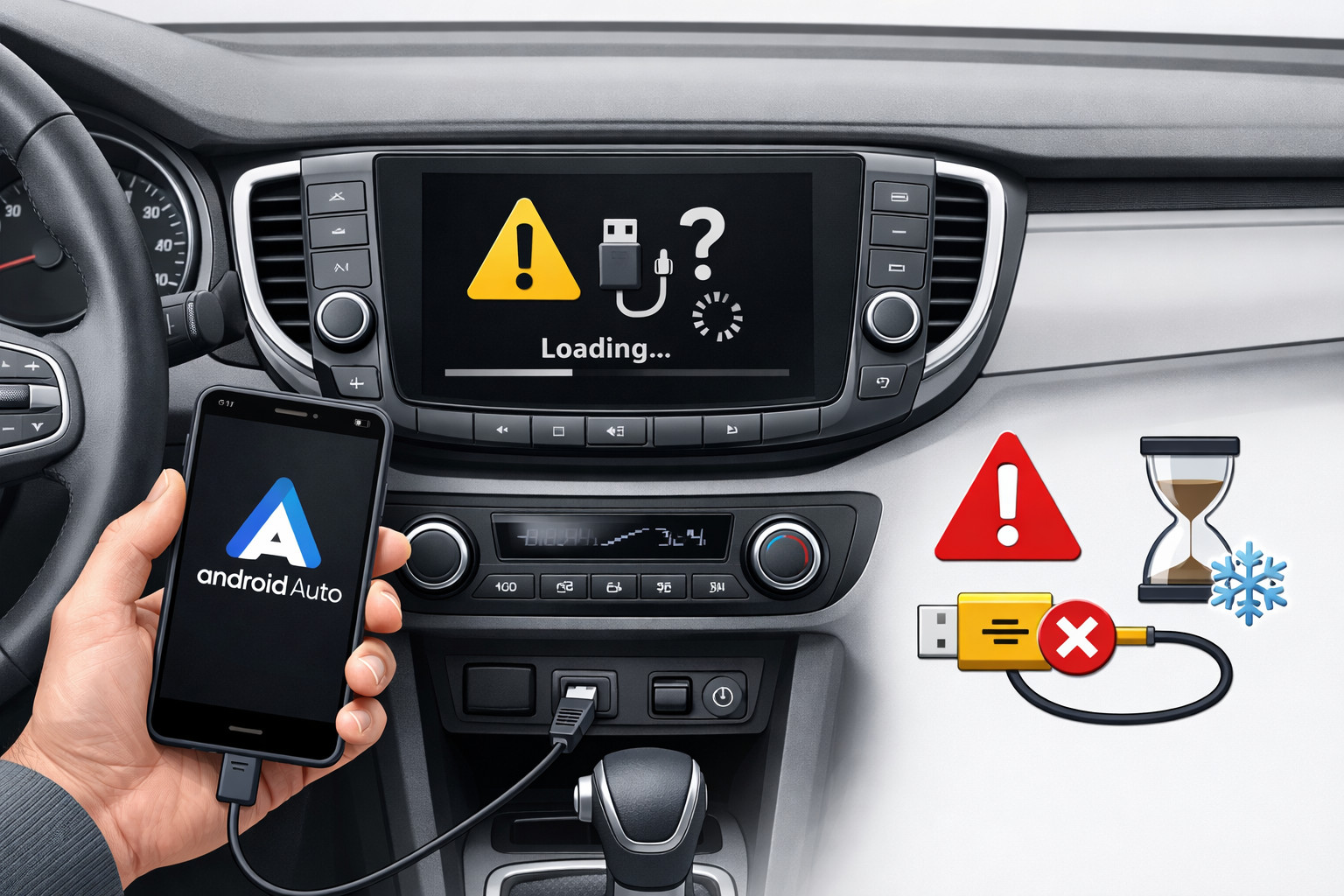
Android Auto most often doesn’t work not because of one “broken part”, but because of a glitch in the phone — cable or wireless link — car head unit chain. If the system freezes, shows a black screen, keeps reconnecting, or the phone only charges without launching the interface, the first step is to identify the type of cause rather than randomly resetting everything.
The troubleshooting logic is simple: phone and car compatibility, a high-quality short cable without adapters, rebooting the multimedia system, updating system services, and re-pairing the car. If the issue appeared right after an Android, Android Auto, or Google services update, it often looks like a software regression rather than a head unit failure.
Why this problem happens
Android Auto depends on several components at once: the Android version, Google Play services, permissions on the phone, USB data transfer or the wireless channel, and the head unit’s compatibility and firmware. A fault in just one place is enough for the system to either not start or to freeze after launch.
Wired and wireless modes fail in different ways. In wired mode, the cable, connector, and data transfer are critical, so the “the phone is charging but Android Auto won’t open” situation often points specifically to a data-line issue. In wireless mode, Bluetooth, Wi‑Fi, location services, and network stability are added, so diagnostics becomes broader.
Main causes
- Incompatibility or outdated firmware of the car or head unit. Having a USB port doesn’t automatically mean Android Auto support. For aftermarket head units, up-to-date firmware is especially important.
- Problematic cable or USB port. This is especially common after long-term use, when the cable works only in a certain position or provides charging only without data transfer.
- Power saving, permissions, and hidden apps on the phone. On some smartphones, the system “puts to sleep” the required apps, causing them to disappear from the car interface or work unstably.
- Failure after an update. A black screen, a permissions check window, or reconnect loops after an update more often looks like a software regression than a new mechanical failure.
- Wireless connection issues. If Bluetooth, Wi‑Fi, location services aren’t enabled, or the profile of a previously connected car got corrupted, startup can fail before the interface appears.
How to understand what the cause is in your case
- Check basic compatibility: the phone should run Android 9 or newer, and Android Go is not suitable.
- Connect a different phone to the same car. If another one works stably, the problem is almost certainly with your phone, the cable, or the settings of this specific setup.
- Connect your phone to another compatible car. If everything is fine there, suspicion shifts to the head unit, its firmware, or a specific USB port in the vehicle.
- For wired mode, immediately replace the cable with a short, high-quality one, without hubs or extension cables. This is one of the fastest and most effective checks.
- For wireless mode, check that Bluetooth, Wi‑Fi, location, and mobile data are enabled, and do the first pairing while parked with the multimedia system turned on.
- If the problem appeared after an update, don’t rush to buy new hardware: first clear Android Auto cache and storage, update Google Play services, and re-pair the car from scratch.
DD Tuning expert comment: The most common mistake is to blame the head unit right away and spend money on replacement without checking the cable, another phone, and the system’s behavior after an update. If Android Auto starts only when the plug is in a certain position or the phone just charges without opening the interface, start by ruling out the cable and connector. For aftermarket multimedia, also check firmware, because outdated software often masquerades as an “Android Auto failure”.
Symptoms, causes, and what to do (table)
| Symptom | Likely cause | What to do |
|---|---|---|
| The phone charges, but Android Auto doesn’t start | The cable or port provides power but doesn’t transmit data | Replace the cable, connect directly without adapters, check another port or another car |
| Constant reconnecting | Poor contact, a corrupted car profile, or regression after an update | Forget previously connected cars, re-pair from scratch, try another cable, update system services |
| Black screen, but navigation or music audio is still playing | Android Auto UI glitch or head unit issue | Restart the multimedia system, clear cache and storage, check for firmware updates |
| In wireless mode the car can’t see the phone | Bluetooth, Wi‑Fi, location disabled, or initial pairing got corrupted | Enable all services, delete the old pairing, perform a new pairing while parked |
| After an update, a permissions check window appears or freezes happen | Software failure after an update | Update Android Auto and Google Play services, clear data, repeat pairing, capture the issue for a report |
| The problem happens only in one car | Compatibility or firmware of a specific car or head unit | Test another phone in this car and check head unit updates |
What actually helps
- A short, high-quality cable. If it used to work and then stopped, this is one of the first checks that really delivers results.
- A full re-connection cycle. Restarting the phone and multimedia system, removing the old car pairing, and connecting again often resolves profile conflicts.
- Updating system components. Not only Android Auto matters, but also Google Play services and the firmware of an aftermarket head unit.
- Clearing cache and storage. It’s not a cure-all, but after an update-related failure it can sometimes restore normal operation.
- Testing with another phone or another car. The best way to quickly understand where the issue is: in the phone, the car, or their specific combination.
What almost doesn’t work or helps only briefly
- Cheap adapters, hubs, and long cables. They often add new dropouts instead of fixing the old ones.
- Endlessly reinstalling Android Auto. On modern phones it’s already built into the system, so reinstalling isn’t a universal fix.
- Randomly disabling every restriction at once. Sometimes only a specific power-saving setting needs adjustment, not a blind full reset of everything.
- Buying a new head unit without diagnostics. If the issue started right after an update or disappears with another cable, the expense may be pointless.
When accessories or replacing components makes sense
Accessories make sense not as “magic cures”, but when you already understand the class of the problem. If Android Auto often drops out on the road, it’s useful to have a backup scenario with navigation on your smartphone — in that case a phone holder is appropriate.
If an old or aftermarket multimedia system freezes regardless of the cable and phone, then it makes sense to think about replacing the system itself. Before spending money, it’s better to first understand how to choose modern in-car multimedia, and if you plan integration with factory buttons and electronics — take a look at Canbus adapters.
But buying random wireless adapters when the basic issues with the cable, port, or firmware aren’t solved usually just adds one more unstable link.
Solutions: when they work and when not to spend money (table)
| Solution | When it works | When it’s not worth spending money |
|---|---|---|
| A new short USB cable | When the phone charges without launching Android Auto or the connection drops when the plug moves | When the problem is the same in both wired and wireless mode after an update |
| Clearing cache, deleting old cars, re-pairing | When the connection profile got corrupted or the system froze after an update | When another phone in the same car also doesn’t work |
| Removing power-saving restrictions | When apps disappear, won’t open, or drop out in the background | When there are clear signs of a cable or USB port problem |
| Updating head unit firmware | When the issue occurs only in one car or on an aftermarket head unit | When the failure reproduces across different cars with the same phone |
| Replacing the multimedia system | When the head unit consistently freezes on its own, regardless of the phone and connection method | When the system worked reliably for years and the problem appeared immediately after an update |
From a customer’s experience: A common scenario is someone coming in thinking they need to replace the head unit because Android Auto sometimes starts and sometimes freezes. After checking, it turns out the phone works in a second car, and the problem disappears after a new short cable and re-pairing the vehicle. In such cases, spending money on a new head unit would have been unnecessary, and a backup phone holder covers the need during diagnostics.
Conclusion
If Android Auto doesn’t work or freezes, the cause most often lies in four areas: car compatibility and firmware, the cable or port, phone settings, or an update-related failure. What works best is not “folk magic”, but systematic elimination: another cable, another phone, another car, updating system services, and a full re-pairing.
Don’t rush to spend money on new multimedia hardware or random adapters until it’s clear exactly where the chain breaks. This material is based on real selection experience, hands-on practice, and real usage scenarios, where correct diagnostics almost always saves more than spontaneous parts replacement.
How it works
- Check basic compatibility First, make sure the phone is running Android 9 or newer, and that the car or head unit supports Android Auto. If the problem appears only in one car, that already points to compatibility or the head unit firmware.
- Rule out a cable or port issue For wired mode, replace the cable with a short, high-quality one, without hubs, adapters, or extension cables. If the phone only charges but Android Auto does not start, the problem is most often with data transfer or the USB port.
- Compare with another phone or car Connect another phone to the same car, and your phone to another compatible car. This will quickly show where the issue is: in the phone, the cable, or the specific car or its multimedia system.
- Restart and reconnect the system Restart the phone and the multimedia system, delete the old car profile, and connect it again. This is especially useful after an update, when a black screen, freezing, or repeated reconnects appear.
- Update and clear system components Update Android Auto and Google Play services, and also clear the cache and storage of Android Auto if the issue started after an update. For aftermarket head units, check the firmware update separately.
- Check settings for wireless mode If the connection is wireless, turn on Bluetooth, Wi‑Fi, location, and mobile data, and do the first pairing while parked. If the car profile has glitched, delete the old pair and create a new one.